
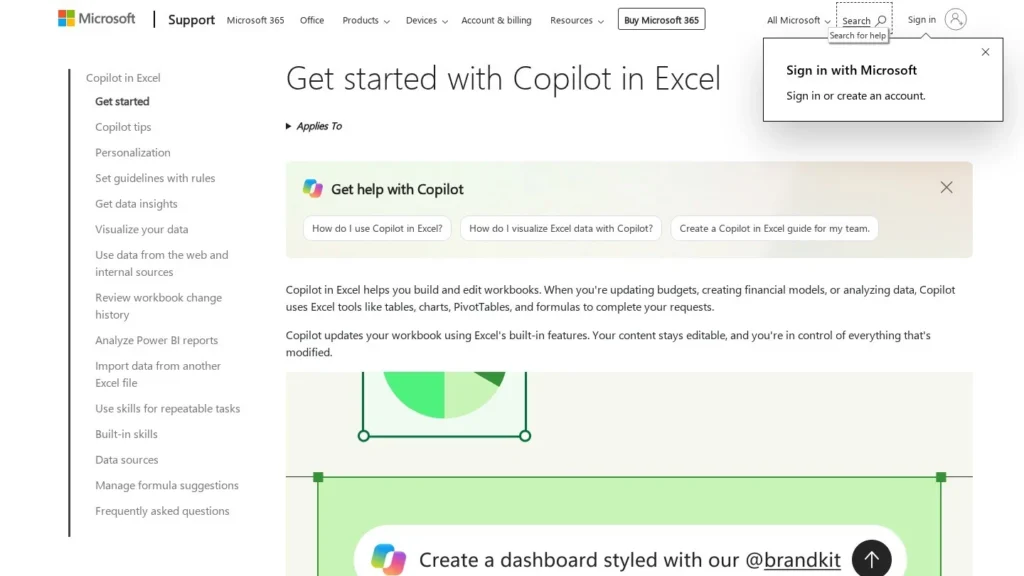
Agent Mode in Excel is Microsoft Copilot working as an agent inside the spreadsheet. You describe a task, Copilot writes a plan, and then it builds sheets, formulas, PivotTables and charts in the workbook while you watch. Since April 2026 it is the default Copilot experience for Microsoft 365 Copilot and Microsoft 365 Premium subscribers, and Microsoft’s plans page lists business pricing from US$23.50 per user per month, paid yearly.
It suits organizations that already pay for Copilot and want analysts to build and change workbooks faster. The main hurdle is the licence: there is no free tier and no standalone purchase. We rate it 8.6/10 on our scale, with strong scores for autonomy and setup and a lower score for pricing value because a Copilot licence is required.
Agent Mode in Excel for Copilot Customers
- Agent Mode became the default Copilot experience in Word, Excel and PowerPoint for Microsoft 365 Copilot and Premium customers in April 2026.
- Edit mode plans the work, makes changes in the workbook and checks the result; plan mode asks for approval first, and chat mode makes no edits.
- A model picker offers the latest Anthropic and OpenAI models, set to Auto by default.
- Microsoft lists Copilot Business at US$23.50 and Enterprise at US$30 per user per month, paid yearly.
- Edit mode works on Windows, Mac and the web; it is rolling out on iPad and iPhone, and Android has chat only.
Agent Mode in Excel by the Numbers
Microsoft documents Agent Mode through its support pages and plan pages, and press coverage tracks the rollout.
| Fact | Detail | Source and Date |
|---|---|---|
| Default status | Agent Mode is the default for Microsoft 365 Copilot and Microsoft 365 Premium customers in Word, Excel and PowerPoint | Computerworld, April 24, 2026 |
| Modes | Edit (default), plan and chat | Microsoft Support |
| Full platforms | Windows, Mac and web support edit, chat and plan modes | Microsoft Support |
| Mobile | iPad: chat and plan, edit rolling out; iPhone: chat, edit rolling out; Android: chat only | Microsoft Support |
| Model choice | Latest Anthropic and OpenAI models; Auto by default; choice lasts for the session | Microsoft Support, Claude in Excel |
| Admin switch | Commercial admins enable “AI providers for other large language models” for Anthropic models | Microsoft Support, Claude in Excel |
| Business plan | US$23.50 per user per month, paid yearly, excluding tax | Microsoft Copilot plans page |
| Enterprise plan | US$30.00 per user per month, paid yearly; adds Copilot Studio | Microsoft Copilot plans page |
For a buyer, the platform rows are the ones to read twice. A finance team on Windows and Mac gets the full agent today, while a field team on Android gets chat only. Plan the rollout around the devices people actually use. A sales team that works mostly from phones will see far less of the agent than a finance team at desks.
The model-choice rows show something unusual. Microsoft lets Excel users switch between Anthropic and OpenAI models, so a company does not have to pick one AI vendor to get an Excel agent. Admins keep the final say over whether Anthropic models are on.
Inside an Agent Mode Session in Excel
Agent Mode lives in the Copilot pane. Everything below follows Microsoft’s support documentation.
Opening Copilot and Picking a Mode
Select the Copilot icon in the lower-right corner of Excel. Edit mode is selected by default; plan and chat sit in the mode menu. Edit mode acts on the workbook. Plan mode drafts the approach and waits for you to confirm before making edits. Chat mode answers questions and never changes the file.
Choosing an Anthropic or OpenAI Model in Excel
Before sending a prompt, users can open the model picker in the upper-left of the pane. Auto lets Microsoft choose; otherwise a user can select one of the latest Anthropic or OpenAI models. The choice holds for the session and resets to the default when Excel closes.
What Copilot Does in Edit Mode
Given a goal, Copilot creates a step-by-step plan and carries it out. Supported actions include adding, renaming and deleting sheets; formatting, validation and layout changes; generating data and formulas, including calculations across sheets; building charts, PivotTables and shapes linked to source data; sorting, filtering and conditional formatting; and surfacing trends, outliers and summaries. It can fetch information from the web with citations and import data from other workbooks in OneDrive, SharePoint or on the computer. Custom skills store repeatable tasks.
Watching, Stopping and Undoing
The pane shows Copilot’s reasoning, and edits appear live in the grid. The Stop button pauses or ends the run. After it finishes, Copilot reviews the result against the request. Because it changes the workbook directly, Microsoft points users to undo and to earlier versions if they want to roll back.
A Sales Operations Example
A sales operations manager opens a workbook with a year of deal data and asks Copilot to build a quarterly summary by region, add a win-rate column, chart pipeline by stage and flag reps below 80% of quota in red. In plan mode, Copilot lists the steps: a new summary sheet, a PivotTable by region and quarter, a formula column for win rate, a stacked chart and a conditional format rule. The manager approves, and Copilot builds each piece. She then asks it to pull last year’s targets from a workbook in SharePoint and add a variance column, which it imports and links.
Writing Requests That Work Well in Edit Mode
Requests that plan well share a pattern: name the output, the data and the rules. “Add a summary sheet with total sales by region and quarter, a win-rate column and a chart” gives Copilot enough to plan. Vague requests such as “analyze this” tend to land in chat-style answers. When the job touches many sheets, start in plan mode, read the steps, and edit the plan in your reply before approving it.
Custom skills help with work that repeats. A team that builds the same month-end variance view every month can save that recipe as a skill, so the next run starts from the same rules for layout, naming and number formats. Web lookups come back with citations, which makes it easier to check an exchange rate or a public figure before it lands in a model.
Rolling It Out Across a Department
A rollout usually has three steps. IT confirms licences and settings, including whether Anthropic models should be available. A small group of analysts pilots edit and plan modes on copies of real files for two to three weeks. Then the team writes a short guide covering when to use plan mode, how to undo, and which models to pick for which jobs. Microsoft’s own advice to keep content editable and to review what is modified fits naturally into that guide.
What the Excel User Still Decides
People choose the question, check the formulas and decide which numbers go to leadership. Copilot handles the clicks and the formula writing; ownership of the analysis stays with the analyst.
Microsoft Copilot Plans That Include Agent Mode
Agent Mode has no price of its own. It comes with Copilot licences.
| Plan | Price | Billing | What’s Included | Limits |
|---|---|---|---|---|
| Microsoft 365 Copilot Business | US$23.50 per user per month | Paid yearly | Copilot with Work IQ, productivity apps, identity management, security, cloud storage | Price excludes tax |
| Microsoft 365 Copilot Enterprise | US$30.00 per user per month | Paid yearly | Copilot, productivity apps, Copilot Studio, enterprise-grade security | Price excludes tax |
| Microsoft 365 Premium | Consumer subscription | See Microsoft | Agent Mode as the default Copilot experience | For individuals and families |
Yearly Licence Costs for Three Organizations
- A 10-person finance team on Business: 10 users at US$23.50 is US$235 a month, or US$2,820 a year.
- A 50-person company on Business: US$1,175 a month, or US$14,100 a year.
- A 200-seat enterprise on the Enterprise plan: 200 users at US$30 is US$6,000 a month, or US$72,000 a year.
These licences cover far more than Excel: Copilot also works in Word, PowerPoint, Outlook and Teams. The fair comparison is the value of Copilot across the suite, with Agent Mode in Excel as one part. Local taxes are extra, and prices shown on regional Microsoft pages can differ.
Agent Mode in Excel Compared With Claude for Excel, ChatGPT for Excel and Gemini in Google Sheets
The big AI vendors all now ship a spreadsheet agent.
| Agent | Starting Price | Free Plan | Main Strength | Main Weakness | Best For |
|---|---|---|---|---|---|
| Agent Mode in Excel | US$23.50 per user per month, yearly | No | Built into Excel with plan mode and model choice | Needs a Copilot licence | Microsoft 365 organizations |
| Claude for Excel | Claude Pro, $17 a month yearly | No | Cell-level citations and finance data connectors | No macros or VBA | Claude users in finance |
| ChatGPT for Excel | ChatGPT Plus, $20 a month | Sheets version on all plans | Finance data apps and Sheets support | Excel availability varies by plan and region | ChatGPT users |
| Gemini in Google Sheets | Workspace Standard, $14 a user a month | No | Builds whole spreadsheets with Workspace context | US and English only for the newest features | Google Workspace teams |
Agent Mode’s advantage is that it needs no add-in and reaches OneDrive and SharePoint files natively. Claude for Excel and ChatGPT for Excel fit companies that standardize on those assistants. See more on our spreadsheet agents and enterprise agents pages.
Organizations Suited to Agent Mode in Excel
- Companies already on Microsoft 365 Copilot: Agent Mode is the default, so the cost is already paid.
- Finance and operations teams on Windows and Mac: they get full edit, plan and chat modes.
- IT teams that want one control point: Copilot settings and model providers sit in the Microsoft 365 Admin Center.
- Teams with data spread across SharePoint workbooks: Copilot can import from those files directly.
Teams That May Start With a Different Spreadsheet Agent
- Small businesses without Copilot licences: a free or low-cost add-in such as Shortcut is a cheaper test.
- Field teams on Android: they get chat only today.
- Google Workspace companies: Gemini in Google Sheets works where their files live.
Licensing and Model Settings to Review
Microsoft’s support page notes that Copilot might not be included in every Microsoft 365 subscription and can be limited by organization settings. Before a rollout, confirm which licence each user holds and whether IT has enabled Copilot in Excel.
Model choice has a governance angle. Anthropic is listed as a sub-processor for Microsoft Online Services, and commercial admins must turn on other AI providers before users see Anthropic models. Legal and security teams may want to review that setting before switching it on.
Edit mode acts on the workbook directly. Train users to start important jobs in plan mode, to work on copies of critical models and to use undo or version history when a run goes the wrong way. A short internal pilot on your own files is the best guide to accuracy.
Shared workbooks need a rule too. When several people edit the same file in SharePoint, an agent run that adds sheets or rewrites formulas affects everyone at once. Agree on who may run edit mode on shared models, and keep a separate working copy for experiments. Version history in OneDrive and SharePoint is the safety net, so check that it is turned on for the libraries your finance team uses.
Costs can also creep. Copilot licences are per user, so adding Agent Mode for a whole department means licensing every member, including people who open Excel twice a month. A practical start is to license heavy spreadsheet users first and expand once usage data shows who benefits.
Agent Mode Rollout Across Word, Excel and PowerPoint
On April 24, 2026, Computerworld reported that Agent Mode is now available in Word, Excel and PowerPoint as the default Copilot experience for Microsoft 365 Copilot and Microsoft 365 Premium subscribers. The report said Copilot in Excel can understand the structure of PivotTables and that Microsoft plans further editing improvements for complex finance spreadsheets.
Microsoft’s support page on model choice confirms that Copilot in Excel supports the latest Anthropic and OpenAI models through a picker in the pane.
How Agent Mode in Excel Scores for Spreadsheet Work
Agent Mode in Excel scores 8.6/10 on our scale. Autonomy, setup and integrations score high because it plans and edits inside Excel, needs no install and reaches Microsoft 365 files. Trust scores well thanks to admin controls and version history. Pricing value is lower because a Copilot licence is required, and user sentiment is neutral until allowed review sites rate it.
For Copilot customers, the next step is training: show analysts plan mode, the model picker and the Stop button. For everyone else, weigh the licence against what Copilot does across Word, Outlook and Teams, not Excel alone. A department that builds weekly reports by hand in Excel is the group most likely to see time come back in the first month.
Spreadsheet Users’ Questions About Agent Mode
Do I Need Microsoft 365 Copilot for Agent Mode in Excel?
Yes. Agent Mode is the default Copilot experience for Microsoft 365 Copilot and Microsoft 365 Premium subscribers. Microsoft lists Copilot Business at US$23.50 and Enterprise at US$30 per user per month, paid yearly.
Can Agent Mode Build PivotTables and Charts?
Yes. Microsoft lists charts, PivotTables and linked shapes among the edits Copilot can make, along with formulas across sheets, formatting, sorting and filtering.
Can I Use Claude Models in Excel Copilot?
Yes. A model picker in the Copilot pane offers Anthropic and OpenAI models. On commercial plans, an admin must enable other AI providers first.
Does Agent Mode Work on iPad or Android?
On iPad, chat and plan modes work and edit mode is rolling out. iPhone has chat with edit rolling out, and Android has chat only.
How Do I Stop Copilot From Changing My Workbook?
Use plan mode to approve the approach first, chat mode to avoid edits entirely, or the Stop button to halt a run. Changes can be undone or restored from earlier versions.
User Reviews
Nobody has rated it here yet. Be the first AI Agents Choice user to rate Agent Mode in Excel.