

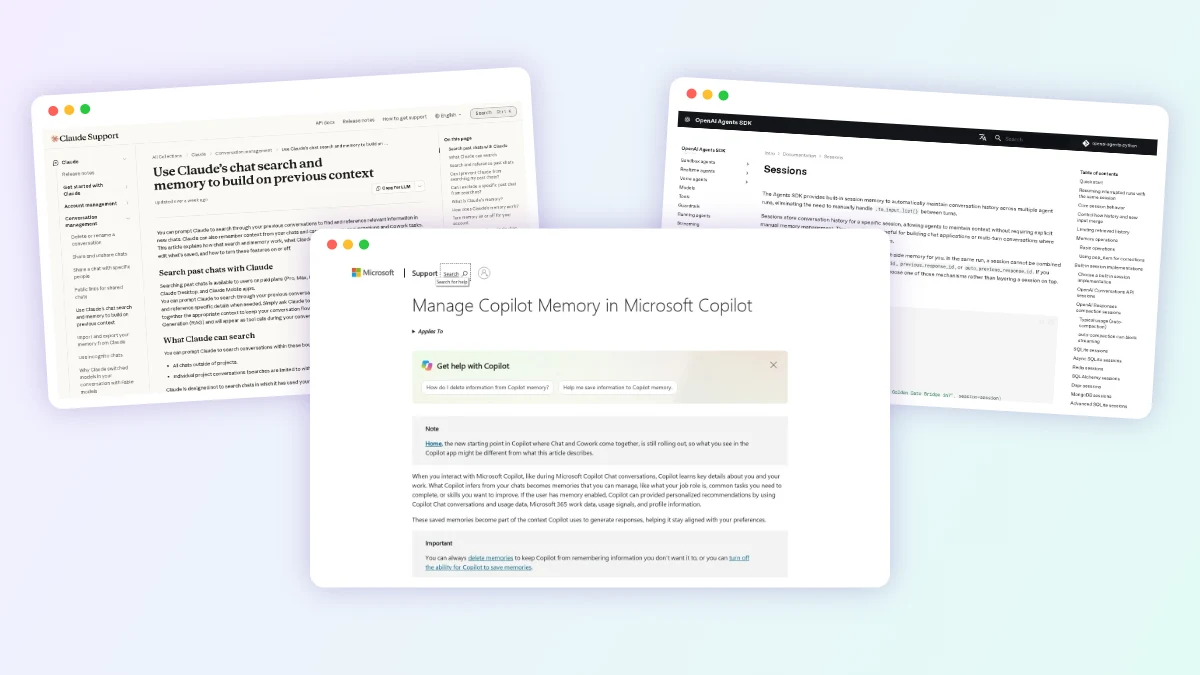
Delete a chat in Claude, and the memory it created can stay behind. The same is true in ChatGPT. That one detail trips up most people who try to make an AI forget something.
To update AI agent memories, open the memory manager in each app and edit the entry, or tell the assistant the correct fact. To delete them, remove the single memory, then clear every other place the fact lives, such as old chats and connected apps. Developers do the same thing in code, with update and delete calls on the memory store.
We expected the four big assistants to handle deletion the same way. They do not, and the gaps decide how much really gets erased.
Find Where Each Assistant Keeps Its Memories
Each assistant splits memory into more than one store. So a full cleanup means knowing every store, not only the obvious one.
| Product | Memory stores | Where to manage | Delete one item | Delete everything |
|---|---|---|---|---|
| ChatGPT | Saved memories, chat history reference, memory summary | Settings > Personalization > Memory | Delete in Saved memories or ask ChatGPT to forget | Delete and turn off memory, then clear chats, Library files and connected apps |
| Claude | Memory topics (new) or a memory summary (legacy), plus project memory | Settings > Your Claude > Your memory | Open a topic and select Delete | Turn off Generate memory from chats, then Reset memory |
| Gemini | Saved info (Personal context) and memory of past chats | Settings > Personal context | More > Delete on an entry | Delete chats in Gemini Apps activity and disconnect apps |
| Microsoft 365 Copilot | Saved memories and chat history | Settings and more > Chat settings > Personalization | Trash icon next to the memory | Delete all memories |
| Microsoft Copilot (consumer) | Memory and conversation history | Profile > Memory | Ask Copilot to forget it | Memory > Delete all Memory |
Edit and Delete ChatGPT Memories
ChatGPT keeps three kinds of memory. Saved memories are details you asked it to remember, or that it saved as useful. Reference chat history lets it draw on past conversations. Finally, the memory summary gives a high-level view of what it may use.
- Open Settings > Personalization > Memory.
- To correct something, type the fix into the memory summary field, or highlight the wrong text and edit it.
- To remove one item, delete it from the summary or the Saved memories list. You can also ask ChatGPT to forget it.
- To stop a topic from coming up without deleting it, choose Don’t mention this again.
- To wipe the summary, open the ••• menu in the memory summary and choose Delete and turn off memory.
That last option does not delete past chats. So if you turn memory back on later, ChatGPT can build new memories from the chats still in your history. For a true reset, also delete the regular and archived chats that hold the fact, plus any Library files and connected apps that contain it.
Timing matters too. Deleted saved memories may sit in logs for up to 30 days for safety and debugging. After you turn off Reference chat history, what ChatGPT remembered from chats is scheduled for deletion within 30 days.
For a one-off private session, use a temporary chat. Temporary chats do not create or update memories. Choose Unpersonalized before you start if you also want ChatGPT to ignore existing memories and custom instructions. You cannot change that once the chat begins.
Manage and Reset Claude Memory
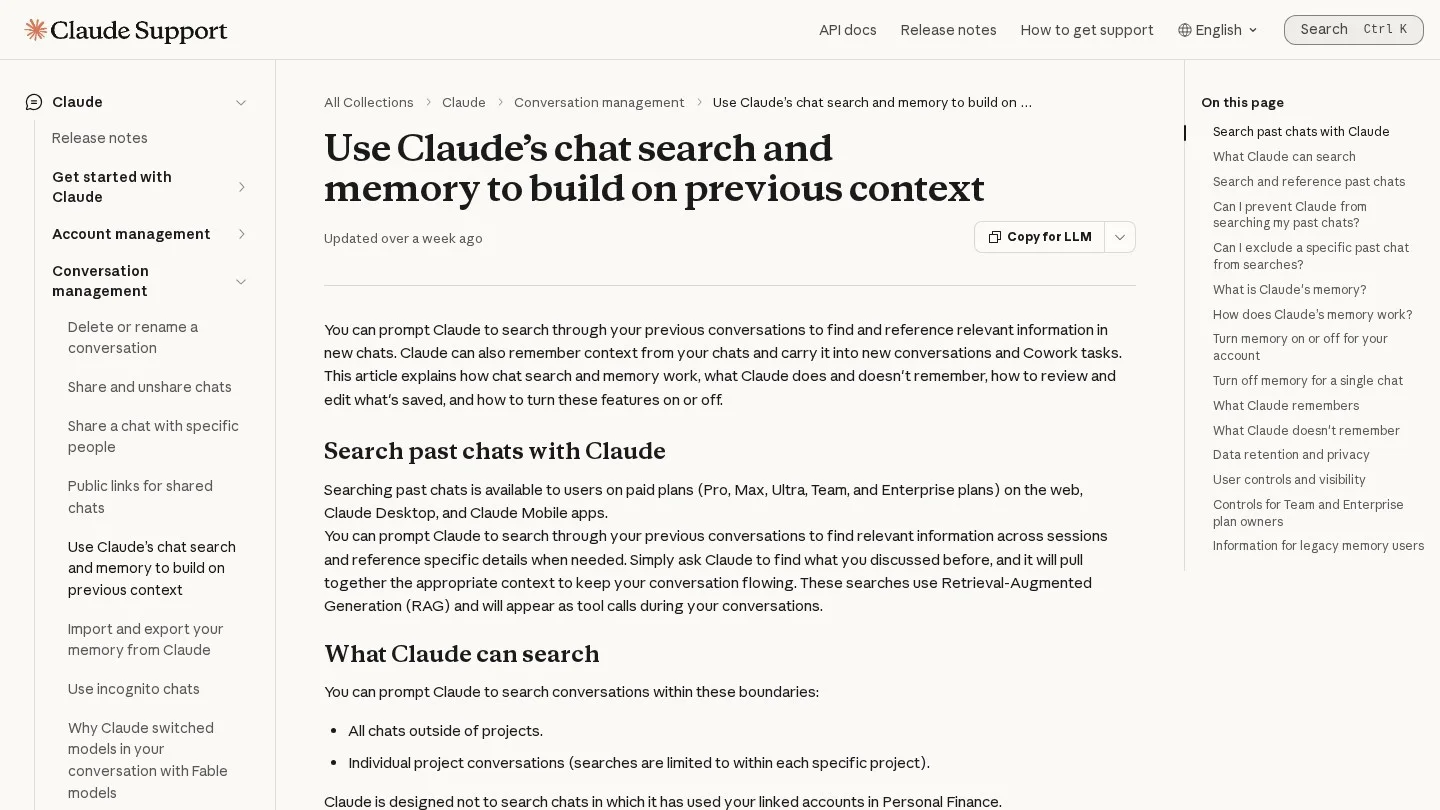
Claude now saves memory as separate topics while you chat. You can also say remember this to save something on the spot. Older accounts may still see the legacy memory summary, which updates every 24 hours.
- Go to Settings > Your Claude and select Manage next to Your memory.
- Pick a topic under Topics to read it.
- Use the edit icon to change it, or select Delete to remove it.
- Or tell Claude in chat what to change or forget. The change applies from your next conversation.
For a bigger change, turn off Generate memory from chats. Claude then offers two choices. Pause memory keeps what exists but stops using it and stops adding to it. Reset memory permanently deletes all memories, including project memories, and you cannot undo it.
Projects need their own check. Each project has separate memory, and project chats also use your account memory. To keep a project sealed off, turn off Use account memory on the project’s page.
Deletion rules differ by version. In the new topic-based memory, deleting a chat does not remove the memory entries made from it, so delete those entries directly. In the legacy version, deleted chats drop out of the memory summary.
Two tools stop memories from forming at all. An incognito chat, opened with the ghost icon, is not saved to memory or chat history. Alternatively, open the + menu and turn off Memory before your first message. That chat stays in your history and search, but it does not use or feed memory.
Remove Saved Info and Past-Chat Memory in Gemini
Gemini keeps two kinds of memory. Saved info holds facts you asked it to remember. Memory of past chats lets it learn from earlier conversations.
- Go to gemini.google.com and open Settings > Personal context, or go straight to gemini.google.com/saved-info.
- Find the entry you want to change.
- Click More, then Edit or Delete.
Past-chat memory works differently. You cannot edit a single memory there, so you delete its source. Find the chats that contain the fact in Gemini Apps activity and delete them. Gemini may take a short time to stop using them. If the fact came from a connected app, delete the chats and disconnect the app, since doing only one is not enough.
To switch memory off, open Settings > Personal Intelligence on the web and toggle Memory. On mobile, tap your profile picture to find the same setting. To correct a wrong detail without deleting anything, keep Memory on and correct Gemini in a chat.
Temporary chats skip all of this. They do not appear in recent chats or activity, and they do not personalize Gemini. Google keeps them for up to 72 hours to respond and process feedback.
Read also: Most Profitable AI Agent Business Ideas, Scored and Ranked
Clear Microsoft Copilot Memory at Work and at Home
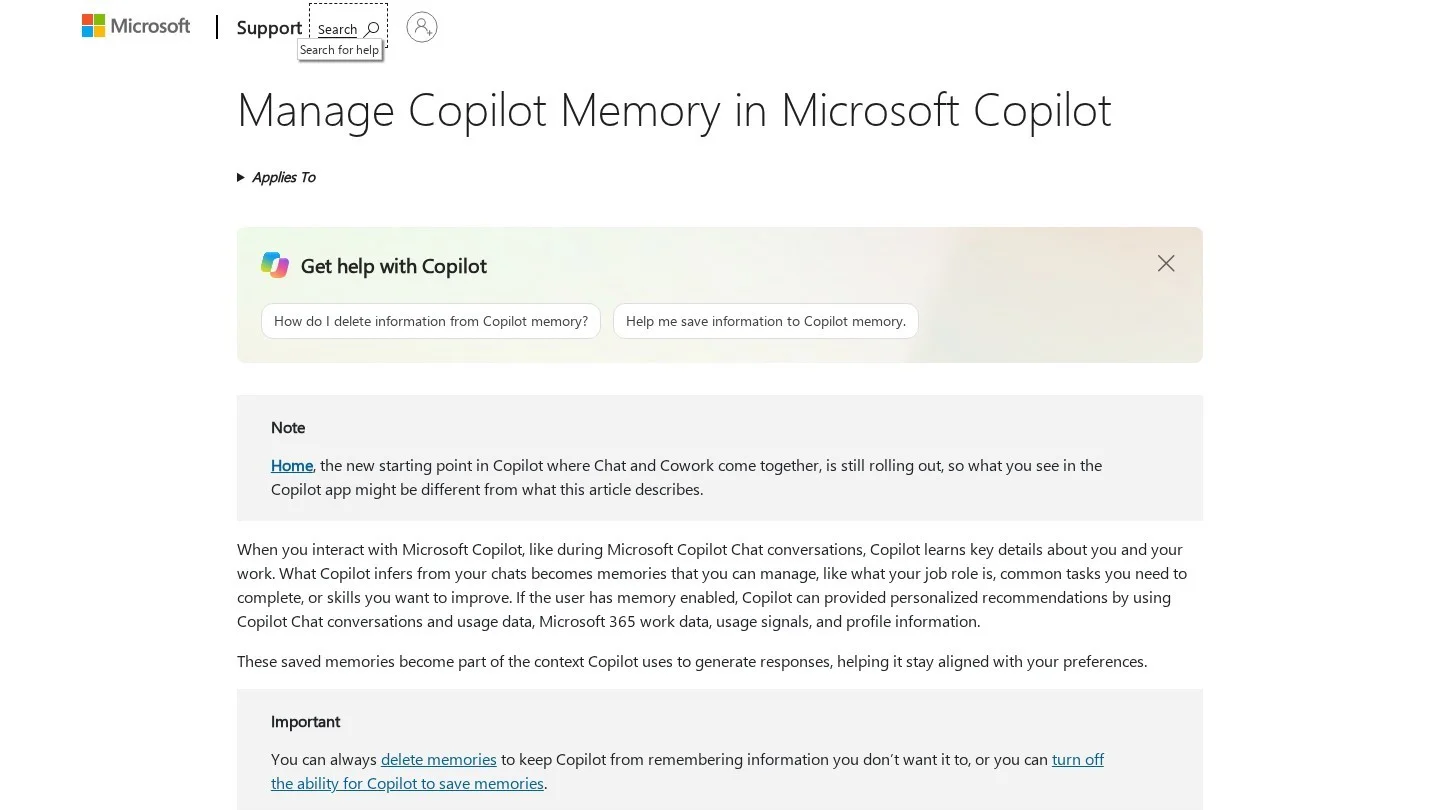
Microsoft 365 Copilot saves memories by default and may ask before saving one. When it saves, you see a Memory updated notice.
- In Copilot Chat, select … Settings and more at the top right.
- Select Chat settings, then Personalization.
- In the Saved memories tile, select Manage saved memories.
- Select the Delete icon next to a memory, or Delete all memories to clear the list.
There is no edit box for a single memory. Instead, tell Copilot the new fact, and it merges related memories and updates outdated ones. Also note that turning the Saved memories toggle off does not delete what is already stored. Chat-history personalization is a separate setting with its own off switch.
The consumer Copilot app works by conversation. Ask What do you know about me? to see your memory. Then say Forget that I like science fiction movies to remove one item. To clear everything, select your profile icon, then Memory > Delete all Memory. Your conversation history stays, and Microsoft keeps it for 18 months unless you delete it.
Verify the Assistant Has Really Forgotten
A delete button is not proof. So test the result in a fresh chat before you move on.
- Copilot. Ask What do you know about me? again after a delete, and read the answer.
- Gemini. Ask Did you use any info from past chats? When saved info is used, Your saved info usually appears under Sources and related content.
- ChatGPT and Claude. Ask about the deleted fact in a new chat. If it comes back, search your old chats for it, since chat history can still feed memory.
Give it a little time, though. Gemini may take a short while to stop using deleted chats, and Claude applies memory changes from the next conversation.
Update and Delete Memories in Agent Frameworks
Developers face the same problem one level down. Every memory layer needs an update path and a delete path, and the method names differ. Our guide to agent state across sessions covers how these stores are set up. The steps that follow cover how to change what is in them.
OpenAI Agents SDK Sessions

A session stores conversation items for one session ID. You fix a bad turn by removing the latest items, then rerun the corrected request.
from agents import Agent, Runner, SQLiteSession

agent = Agent(name="Assistant")
session = SQLiteSession("user_123", "conversations.db")

result = await Runner.run(agent, "What's 2 + 2?", session=session)

# Undo the last exchange: assistant reply first, then the user turn
assistant_item = await session.pop_item()
user_item = await session.pop_item()

result = await Runner.run(agent, "What's 2 + 3?", session=session)

# Forget the whole session
await session.clear_session()
For automatic expiry, wrap a session in EncryptedSession with a ttl in seconds. Sessions also run on Redis, SQLAlchemy, Dapr and OpenAI’s Conversations API. Our OpenAI Agents SDK profile covers the rest of the toolkit.
LangGraph Store and LangMem
In a LangGraph store, a memory is an item under a namespace and key. Writing to an existing key with put overwrites it, which is how you update. To delete, call store.delete(namespace, key).
LangMem adds a tool so the agent can manage memory itself. The create_manage_memory_tool function permits create, update and delete by default. The agent passes an id to update or delete an entry.
from langmem import create_manage_memory_tool

# Let the agent add and fix memories, but never delete them
manage = create_manage_memory_tool(
    namespace=("memories",),
    actions_permitted=("create", "update"),
)
Restricting actions_permitted is a quiet but useful control. For example, you might allow deletes only from an admin path. See our LangGraph profile for the wider framework.
Mem0
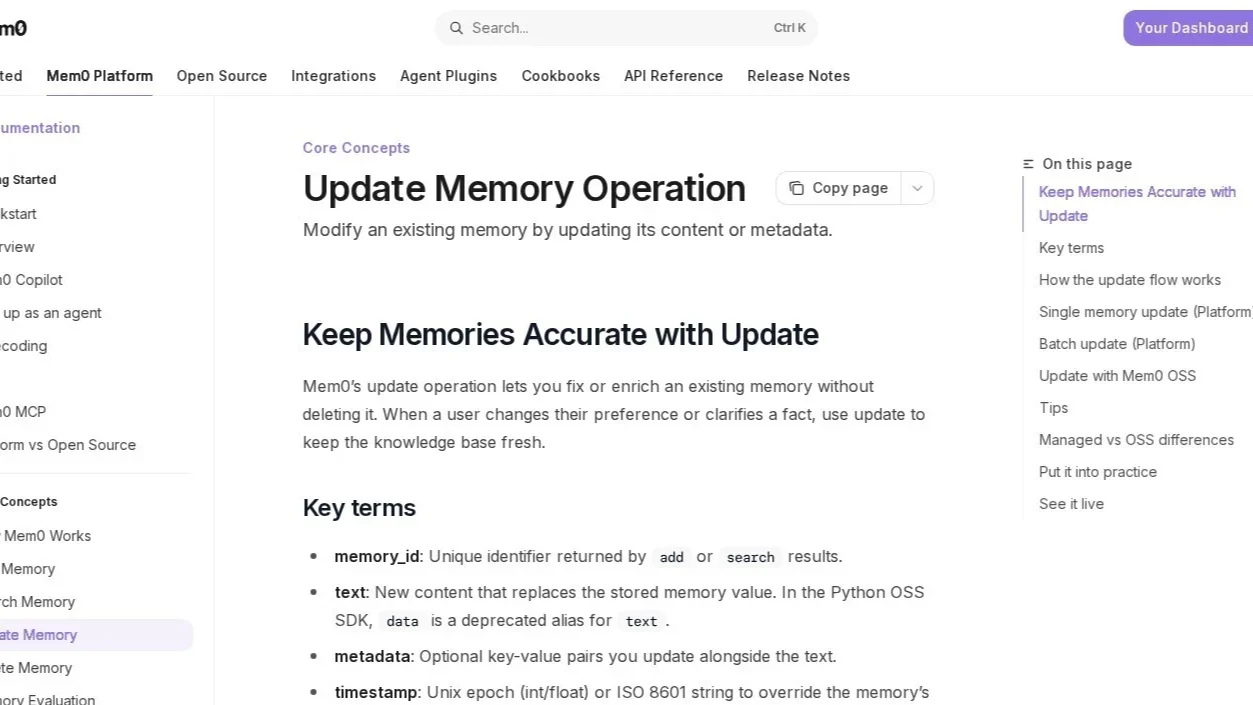
Mem0 gives each memory an ID, which you get from add or search results. Update replaces the stored text, and delete removes it.
from mem0 import MemoryClient

client = MemoryClient(api_key="your-api-key")

# Fix one memory
client.update(memory_id="mem_123", text="Alex now prefers decaf coffee")

# Remove one memory
client.delete(memory_id="mem_123")

# Remove everything stored for one user
client.delete_all(user_id="alex")
Batch calls handle up to 1,000 memories at a time with batch_update and batch_delete. Two safety rules help here. First, delete_all now raises an error if you pass no filter. Second, the SDK blocks an empty ID such as user_id="", since it would match every memory. Immutable memories cannot be updated, so delete and re-add them. Read our Mem0 profile for setup.
Letta
Letta stores core memory in labeled blocks, such as human and persona. You update a block’s value by label for one agent.
client.agents.blocks.update(
    agent_id=agent.id,
    block_label="human",
    value="The human's name is Alice. She prefers Python over TypeScript.",
)

# Remove a block from one agent but keep it
client.agents.blocks.detach(agent_id=agent.id, block_id=block.id)

# Delete a block everywhere
client.blocks.delete(block_id=block.id)
Be careful with shared blocks. A block can attach to several agents, so client.blocks.delete removes it from all of them. Use detach when only one agent should forget.
Build a Forget Request Into Your Own Agent
Say a user tells your support agent, forget my old home address. A tidy flow covers every store that might hold it.
- Find the memory. Search the long-term store for address entries under that user’s ID.
- Delete or update it. Call delete on the old entry, or update it if the user gave a new address.
- Clean short-term state. Pop or clear session items that repeat the old address, so the next turn cannot reread it.
- Check shared memory. If the fact sits in a shared block, detach or edit it there.
- Confirm in plain words. Tell the user what was removed, and log the deletion with a timestamp for your records.
Step three is the one teams skip. Long-term memory may be clean while the session still holds the old fact. Then the agent repeats it on the next turn, and the user rightly loses trust.
Limit What Agents Remember in the First Place
Deleting is a fix after the fact. These settings cut what gets stored at all.
- Sensitive topics in Claude. Health and politics are not saved by default. Government ID numbers, criminal history, financial account numbers and immigration status are never saved.
- Temporary and incognito chats. ChatGPT, Claude and Gemini all offer a mode that skips memory.
- Expiry dates. Mem0’s open-source SDK accepts an
expiration_dateon update, and anEncryptedSessionin the Agents SDK takes a TTL. - Read-only blocks. Letta blocks created with
read_only=Truestop the agent from rewriting policy text. - Health data. ChatGPT for Healthcare and Regulated Workspace turn improved memory off by default. It is not covered by the BAA, so keep PHI out of it.
For more tools that handle memory and state, browse our AI agent frameworks.
Common Questions About Erasing AI Memory
Does Deleting a Chat Delete the Memory Made From It?
Not always. In ChatGPT and in Claude’s new memory, the saved memory can outlive the chat, so delete both.
How Long Does ChatGPT Keep Deleted Memories?
Deleted saved memories may stay in logs for up to 30 days for safety and debugging.
Can I Export My Claude Memory Before Resetting It?
Yes. Memory import and export is an experimental feature, and memory is also part of a full data export.
Does Turning Memory Off Delete What Is Stored?
No, in most products. ChatGPT, Microsoft 365 Copilot and Claude’s pause option all keep existing memories until you delete them.
Related AI Agents


Read also: Can You Trust an AI Agent?
Explore Agent Categories
Related Articles
 GuidesSynthesia AI Video Usage Among Corporate Training Teams
 GuidesBest CAMEL AI Alternatives and What They Cost
 Guides100 AI Agent Statistics for Retail Companies
 GuidesLLM or AI Agent? AI Search Engines and What They Actually Are
 GuidesCan You Trust an AI Agent?
 GuidesAre AI Agents the Future of IT Jobs?
